Small Molecule Design Tool

Started by Sciren

Sciren Staff Lv 1

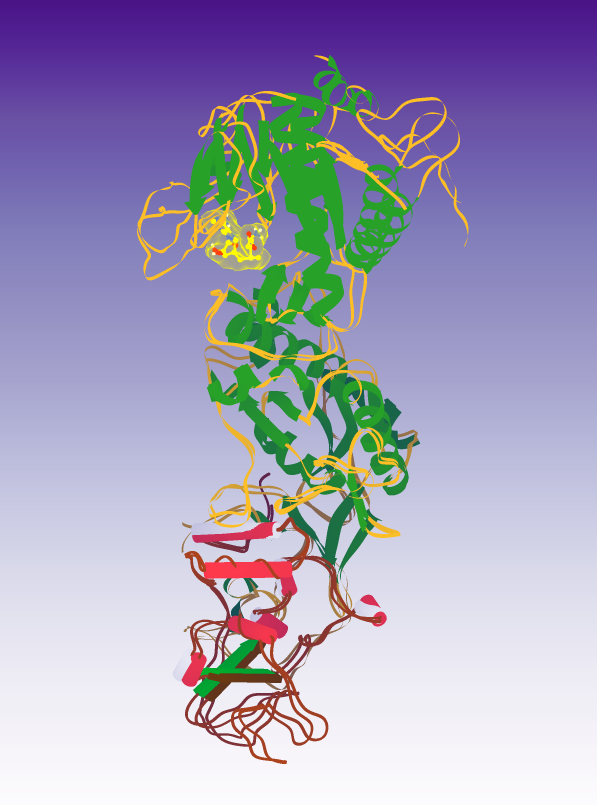
The highly anticipated updates to the Small Molecule Design Tool are here, and we have a series of puzzles on the way! Your continued efforts in protein design have been nothing short of remarkable, and we are excited to be able to further help this amazing community contribute to small molecule design. While protein based drugs are an increasingly important category of therapeutics, the majority of drugs continue to be small-molecule based. With the Small Molecule Design tool you will be able to create, edit, and enhance small molecules.

Let's dive in and see how the Small Molecule Design Tool works. The tool will come up as an option in the Selection Mode action bar when you select a designable small molecule on a puzzle which supports it. With the Small Molecule Design Tool open, you can select particular atoms in the designable ligand to act on. The tool has two distinct panels: Atom Selection and Fragment Selection. You can toggle between them with the central Panel Selection Button.

The Atom Selection Panel has two unique areas: The Atom Selection area at the top and the Bond Selection area in the middle. With Atom Selection, selected atoms can be replaced with an atom of your choosing, assuming the placement is allowed. With Bond Selection, you will be able to select two atoms, and change the bond type between them.

The Fragment Selection Panel works with groups of atoms. The category buttons in the middle organize the fragments into four separate groups: Functional Groups, Unsaturated Cyclic, Saturated Cyclic, and Polycyclic. Each choice will change the contents of the Fragment Selection area above. Once you’ve selected the type of fragment, you can select the location (the atoms) on the small molecule where you want it to go, and then select which fragment you want from the Fragment Selection area. This will pop up a sub-panel which allows you to select where on the fragment you want to place the attachment. Using the A, S and TAB keys while hovering over the selection in the subpanel will allow you to further customize how the fragment is placed.

You may have noticed that both panels share a couple of elements. These are the Panel Selection Button, which allows you to switch between the Atom Selection Panel and the Fragment Selection Panel, and the Cleanup Structure area, with which you can delete atoms, delete bonds, and deselect highlighted atoms.

Be sure to check out the new tutorials to help get you started! We can't wait to see what all you come up with. Happy building!

cas0362 Lv 1

The fun with fragments tutorial does not appear to be working at the moment. It has a red outline.

Sciren Staff Lv 1

Hi cas0362! I'm sorry you are experiencing an issue with the Fun with Fragments tutorial. If I could, I would like to get some more information on what you are seeing. Have you completed the Inside the Pocket tutorial? Fun with Fragments is only accessible once you have completed the previous tutorial. If you haven't, it is by design that you would see a red outline with an inactive/darker image, and be unable to play the tutorial.

alcor29 Lv 1

  1. I looked at the 'small molecule color' and unfortunately selected one by mistake. Now can't go back to ligand color ochre n View Menu. Please include this color as a choice so we don't have to reboot (some of the colors available there have probs, i.e white blends in with protein, yellow too close to S, etc.

2.What is a MMF wiggle?
3.Why do we see red balls with skinny bonds? What do they mean? Are the Oxygens? Acceptors?

rmoretti Staff Lv 1

  1. MMFF wiggle is a wiggle which uses the "Merk Molecular Force Field", a small-molecule based scoring method, rather than the standard Foldit/Rosetta scoring method. We include it because it may help in some situations. It might not, though, and since it's using a different scoring function from the one used for the top line score, it may make your score go down rather than up. (Think of it a bit like wiggling with a different CI - it's not directly equivalent, as it doesn't change the scoring is exactly the same way CI does, but it's a similar sort of "use an altered score to get different behaviors")

  2. I think what you're referring to is the display which comes from "show bondable atoms" option in the view menu. These blue & red balls coming off of the protein cartoon are the actual locations of the nitrogen and oxygen atoms of the protein backbone. They're displaced (on sticks) from the main cartoon backbone representation because the cartoon version is smoothed a bit for a clearer display. The red balls are indeed oxygens which are hydrogen bond acceptors. The blue ones are nitrogens which are hydrogen bond donors.

MZMeducation Lv 1

can i use the function in foldit standalone? Actually i tried but failed, the function is gray for my pdb file.

LociOiling Lv 1

@MZMeducation beyond a PDB file, a small molecule design puzzle requires additional setup files in Foldit standalone. Unfortunately, there doesn't seem to be any publicly available information on how to create such a puzzle. In the game version of Foldit, the configuration files are mostly encrypted, so they aren't much help. About all they yield if file name extensions, for example the PDB file has the extension .opdb.

Just for reference, here's what we know about small molecule design setup.

Looking at puzzle 2276 in the game version of Foldit, I see its "node" on the website is 2013586. The node number is used in naming files related to the puzzle.

0002013586.ir_puzzle is the main file for puzzle 2276. Among other things, it lists the other configuration files and their checksums. The .ir_puzzle file itself is not encrypted, but is digitally signed, with the "verify" keyword in the last line. I don't think the .ir_puzzle file is used in Foldit standalone.

In 0002013586.ir_puzzle, the "file_sums" keyword lists these file extensions:

.ofilters
.opdb
.opuzzle_setup
.owts
.params

The file 0002013586.ir_puzzle.params is not encrypted. It appears to contain the topology of the starting ligand in 2276.
It has the comment:

#This automatically generated file is not really formatted well, and is missing some entries, but should work.

So a minimal Foldit standalone config would need an .ir_puzzle.params file in addition to a PDB file.

All the other puzzle files have extensions beginning with "o", which indicates the they are encrypted (or maybe just "obscured"). They presumably have standalone or Rosetta equivalents: .filters, .pdb, .puzzle_setup, .wts, and .params.

The Foldit standalone quickstart guide mentions "example_ligand", which consists of "example_ligand.params", and "example_ligand.pdb". I believe that example was put together long before the current small molecule design tools were completed, so it doesn't have the complete set of files.

This question of how to set up a small molecule design puzzle in Foldit standalone has come up a couple of times recently. I'll keep digging and see if can find information on the other file types.

rosie4loop Lv 1

Update: see my notes on the tests in this post.

I have tested with the "example_ligand" according to the quickstart guide, then adding some atoms onto the ligand and try optimizing. It did work (although lags a bit). So I'd assume maybe just need the "xxx.pdb" file of protein+ligand plus a "xxx.params" for the initial ligand to start the puzzle.

Since Foldit standalone is a "game-derived" GUI of Rosetta, I assume that Rosetta documentation may help if you have the accessory scripts from a standard Rosetta installation, although it requires some command-line usage to prepare the file with Rosetta's "molfile_to_params.py" script. (See https://www.rosettacommons.org/demos/latest/tutorials/prepare_ligand/prepare_ligand_tutorial)

I also GUESS that a workaround would be including a generic dummy ligand structure in the .pdb as starting structure and load the complex + .params then do whatever you want to the ligand.

I have also tested on creating electron density puzzle as I work with crystallographer, but as a beginner to Rosetta/Foldit I had to refer to Rosetta documentation to see the actual format required for the "density" file before I change the file extension. I do wish it is more user-friendly and at least have a better manual, at least comparable to the game-version of Foldit. With comprehensive tutorial Foldit has the potential to be a better educational tool than PyMOL, but the inability of conveniently setting up a custom puzzle is a major drawback forcing me to stay with PyMOL and in-house scripts for educational purpose.