
bkoep Staff Lv 1
Transferring Foldit data
These are instructions for transferring your Foldit data from one installation to another (on a Mac). Your Foldit data includes things like:
- the recipes in your Cookbook
- old Science puzzles in the Puzzle Menu
- shared and auto-saved solutions from old puzzles
- certain user settings.
You should rarely need to reinstall Foldit, since most software updates are handled automatically when you log in to play Foldit online. But if your Foldit installation becomes corrupted, or if you want to play Foldit on a new computer, you may want to download and install a fresh version of Foldit from http://fold.it.
You may also need to reinstall Foldit for special updates that cannot be handled automatically—for example, switching from a 32-bit to a 64-bit version of Foldit. Until November 2019, we distributed a 32-bit version of Foldit for Mac, but macOS 10.15 (Catalina) ended support for 32-bit applications and we switched to a 64-bit version of Foldit. If you installed Foldit for Mac before November 2019, then you will need to reinstall the 64-bit version of Foldit when you upgrade to macOS 10.15.
Follow the steps below to transfer your Foldit data from an old version of Foldit into a fresh install of Foldit (on a Mac).
1. Rename old Foldit
We recommend renaming your old Foldit installation. This isn't strictly necessary, but helps to keep everything straight, and ensures that the old Foldit doesn't interfere with the new installation.
In Finder, navigate to the location of the old Foldit installation (probably in Applications). Right-click on Foldit and select Rename to rename it to something else, like "Foldit-old".
<img src="https://fold.it/portal/files/images/migrate_1.png" alt="" title="" class="image image-preview width="604" height="340" " />
2. Install new Foldit
Download Foldit for Mac from https://fold.it. Once the download has finished, double-click Foldit-macos_x64.dmg to open the installer. Complete the installation by dragging the Foldit icon to Applications or another location on your disk.

3. Access data in old Foldit
In Finder, right-click on your old version of Foldit and select Show Package Contents. Then navigate to Contents/Resources/ to locate your Foldit data. You should see some files with the extension .ir_puzzle for all of the Foldit puzzles you've played.


4. Move data to new Foldit
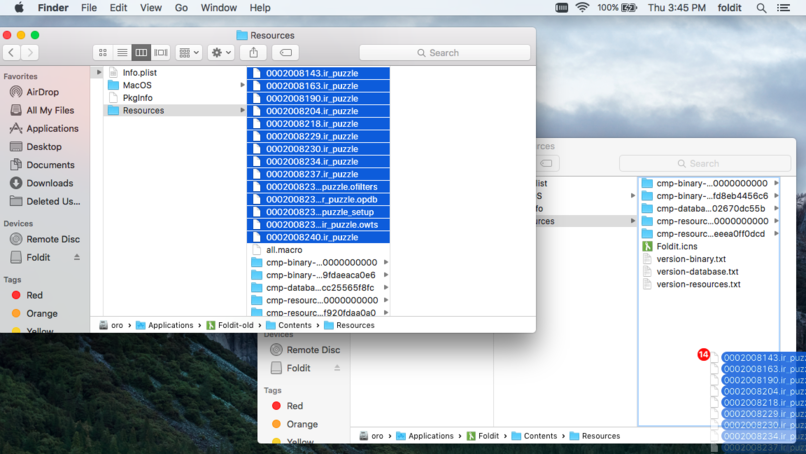
In a separate Finder window, locate the Contents/Resources/ directory in the new version of Foldit, the same way as above. Click and drag files from the old Resources/ to the new Resources/ to transfer your Foldit data:
- 000... files: old Foldit puzzles from the Puzzle Menu
- all.macro: recipes in your cookbook
- options.txt: user settings (like preferred View options)
- puzzle_... files: shared solutions
- puzzles/ directory: autosaved solutions
 >
>
 >
>
5. Play Foldit!
Try running your new installation of Foldit and double-check that everything was transferred successfully to the game!
Because of Apple's security settings, your computer may warn you that Foldit is from an "unidentified developer" and refuse to run the game. You can get around the warning by right-clicking on Foldit and selecting Open.
Once you're sure that all of your data was transferred, you may want to delete the old version of Foldit to save disk space.
