Windows client: change default install location [summary]

Started by Rav3n_pl

spmm Lv 1

I thought that Seth said that the files were being installed correctly.
Perhaps people need to set the ''állow anyone using this computer to use this application'' when they install, rather than admin only. That is standard practice. Just asking.

Rav3n_pl Lv 1

Problem is that user is installing client and it wont start correctly (on same account) if user not have admin rights. Windowz not allowing to modify %program files% w/o admin rights - it is read only. Because client is using own directory for data (it is good way imo) and is installed in %pf% client cant write files and crash.
Problem is gone when we install client in another directory not "protected" by windowz.

tokens Lv 1

I wouldn't like foldit to be installed another place than "program files". A nicer solution in my opinion is to change the permissions of the foldit directory (including the files within it) to make it writable for all users. This is what I did manually on my computer to make foldit work without having to run it as an administrator.

marie_s Lv 1

You cannot ask for people to understand how to change right on files.

Just makes foldit easy to use for everybody and install it by default in c:/foldit.

IT specialists can do as they liked and in my opinion, program files is a place for programm not for data.

DMahalko Lv 1

The real problem is that the FoldIt programmers do not know how to program for Windows. Sorry people, but we are not running windows 95 yet. There is actually disk, file, and registry permissions to deal with. NTFS, not FAT32 anymore. Shocking, I know.

  1. Setup programs are run by administrators and write files to C:\Program Files that normally never change, or at least very rarely.

Config values that are needed to make the program work but which normally never change, are written into the registry in HKEY_LOCAL_MACHINE\Software(Program name) – Users normally can not modify the local machine registry.

  1. User application data that isn't explicitly saved by the user as a document, goes into C:\Users(username)\AppData(Program Name)\

Config values in the registry that are custom to each user need to go into HKEY_CURRENT_USER\Software

  1. Cached application data that is useful to keep around from one logon to the next, but not critical for operations and can be regenerated, goes into C:\Users(username)\AppData\Local(Program Name)\

=============

For schools and businesses that use roaming profiles, C:\Users(username)\AppData is copied up to the network file server and copied down to wherever the user logs on.

HKEY_CURRENT_USER also copies to the network file server when a roaming user logs off, inside the file C:\Users(username)\user.dat

AppData\Local is discarded when a roaming user logs off, and any data regenerated where they logon next. (There is often limited space for network storage, and so if you like to have a 4 gig image cache, leave it on the computer and don't waste time sending it over the wire at every logon/logoff.)

=============

Program updating should be split apart into two parts:

  • program/executable updates that occur very infrequently, done maybe once a year by a network admin

  • database updates, written into the user's roaming AppData program folder, or gasp, in an exposed location in their Documents folder

=============

The file paths for the current user are in the registry. These are dynamically updated for each user that logs on.

"Application Data" folder for current user:
HKEY_CURRENT_USER\Software\Microsoft\Windows\CurrentVersion\Explorer\Shell Folders\AppData

"Local application Data folder" not copied to network for current user:
HKEY_CURRENT_USER\Software\Microsoft\Windows\CurrentVersion\Explorer\Shell Folders\Local AppData

"Documents folder" for current user:
HKEY_CURRENT_USER\Software\Microsoft\Windows\CurrentVersion\Explorer\Shell Folders\Personal

Microsoft does not recommend reading these keys directly but instead using system functions:

DMahalko Lv 1

(forgot to change status)

This supposed "fix" of putting FoldIt in a "C:\Games" location does nothing for schools that want to run FoldIt for student education purposes.

We school network administrators don't want students modifying the local machine. We actually change the default NTFS permissions so domain users can't modify the local drive at all, except for what's in their profile folder.

Image example:

===============

Also, if you actually do decide to fix this problem the proper way, PLEASE don't put hundreds of megs of temporary files in AppData. cache files need to go in "Local AppData".

Roaming can be quite slow, since it copies the entire AppData for all programs from the server to the desktop at logon.

Guess how long it takes for 30 students with 300 meg in each of their Application Data to all logon at the same time, on a gigabit network connection, if it all copies down from server to desktop before they can see the desktop.

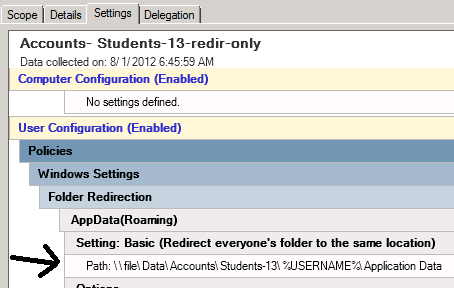
Since many programmers are quite sloppy about putting unnecessary cache data and program updates in AppData, one thing we network administrators can do is tell Windows to access the user's AppData folder direct off the file server and don't do the copy up / copy down at logon/logoff.

Image example:

,

So when a program looks for the roaming AppData folder for a student graduating in 2013, in this case the program will be told its storage location is:

\file\Data\Accounts\Students-13\%USERNAME%\Application Data

This example also shows that doing things the right way means programs should not expect a drive letter at the start of the file path. Microsoft wants UNC paths to work for reading and writing program data.