Help! My favorite recipe is gone!

Started by LociOiling

LociOiling Lv 1

The new website radically changes how the cookbook works, and some recipes have gotten lost in translation.

The good news is that you may be able to recover missing recipes. The key is having a copy of your old cookbook. The old cookbook lived where Foldit is installed on your computer, in a file called "all.macro". The standard location is c:\Foldit\all.macro on Windows.

If you installed the new version of Foldit in a new location, for example c:\Foldit64, you're in good shape. That's assuming you didn't delete the old Foldit installation.

If you installed the new Foldit in the same spot (for example, c:\Foldit), chances are the old all.macro file is still there. '

I'll cover the various scenarios in separate posts.

LociOiling Lv 1

Scenario 1 - Best case - new Foldit is separate from old Foldit, old Foldit still exists

In this scenario, you either backed up and saved the old Foldit, or you installed the new Foldit in a new spot. This would actually be the recommended approach, although the terse update instructions didn't get into that much detail.

Your most recent all.macro file will still be there with the rest of the old Foldit installation.

If you haven't done so already, it might be a good time to make a backup of your old Foldit.

Assuming that old Foldit is in a convenient spot such as c:\Foldit, you can fire it up by double-clicking foldit.exe or the equivalent.

You won't be able to log in, but you should be able to select "play offline". You'll see a list of puzzles, most of which will be expired. (The September 2022 design of the month puzzle may not be expired yet.) Try opening a puzzle, such as a recent revisiting puzzle. (You're more likely to have problems with a more complicated puzzle.

If you succeed in getting a puzzle open, you'll have access to the cookbook. You can then save any Lua-based recipes to a file. We'll get into that in another post.

If you have any GUI recipes, there's no option for saving to a file. There is no "source code" for GUI recipes. We'll cover GUI recipes in yet another post. Be sure to have a safe backup of your all.macro cookook.

LociOiling Lv 1

Scenario 2 - more difficult case - new Foldit installed over existing Foldit

You may have had your old Foldit installed to c:\Foldit or your local equivalent. You may have installed the new Foldit to the same location. There's no need to panic just yet.

First, check c:\Foldit using Windows Explorer or a similar tool. See if you can find "all.macro". If so, life is good. Make a secure backup to a USB key, cloud storage, or floppy disk of your choice.

Next, install the old Foldit, by downloading from old.fold.it, or using an old installer found in your Downloads directory. Pick a location that doesn't already have a Foldit install, for example c:\OldFoldit.

Once you installed old Foldit again, you can copy all.macro to c:\OldFoldit. Then, you're ready to start old Foldit in offline mode, as described in Scenario 1.

LociOiling Lv 1

Scenario 3 - worst case - old Foldit just gone

In this case, you may have deleted c:\Foldit before installing the new version. That would mean your old cookbook, the all.macro file, is also gone.

In the Windows environment, there are a few things you can try. Check the Recycle Bin to see if old Foldit, especially all.macro, is still available. In Windows Explorer, locate the c: drive, and try searching for all.macro there. Check any online backups, such as OneDrive or Google Files, in case there's an all.macro lurking there.

If all of these checks fail, it's not totally the end of the road, but things get much more difficult. The old website is still there, and no doubt still contains all the old recipes, but there's no way to view them online. While you can still run the old Foldit client, it can't connect to the old website, which is required to download recipes.

The best we can hope for at this point is some kind of hack which would allow access to old recipes. One option would be to allow download from the old website, basically saving a recipe to a file. Another option would be to update the old client to allow it connect to old.fold.it for downloading recipes.

It's not clear how technically feasible either of these solutions would be. And the Foldit team has lots of other problems to worry about at this point.

The next best option is probably to set up a recipe swap meet, either here in a discussion or over on the Recipes channel in Discord. There's just a chance someone will have the recipe you need.

LociOiling Lv 1

Recovery 1 - save recipe to file

Assuming you were able to find your all.macro file and get an old Foldit client running in Scenario 1 or 2, you'll be able to access the cookbook.

When you hover over a recipe, you'll see a notepad icon with "Edit recipe" as its hover text.
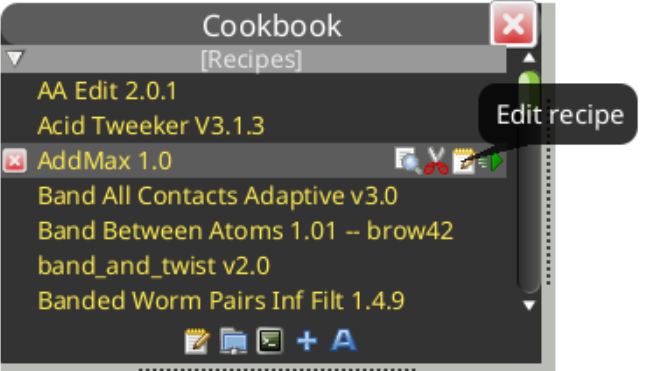
Clicking the icon opens the recipe editor. The view shown here is condensed for space.

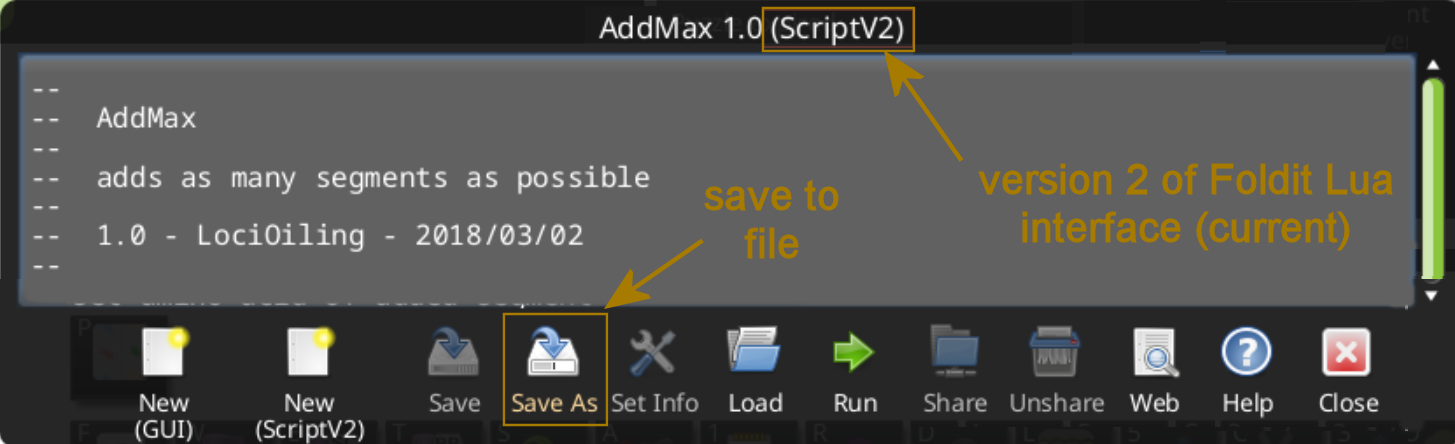
A Lua "V2" recipe has "ScriptV2" in the title bar. This is the current version of the Foldit Lua interface. Most V2 recipes should have imported normally.

The "Save As" button at the bottom of the recipe editor is also important. It's the first step in saving a recipe to a file.
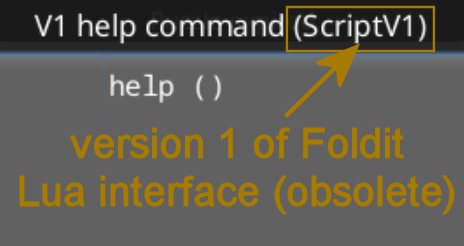
Lua V1 recipes have "ScriptV1" in the recipe editor title bar. These recipes are no longer supported in Foldit. Using the old cookbook editor, they can still be saved to a file. They can then be converted, either manually, or using a program written by @Rav3n_pl
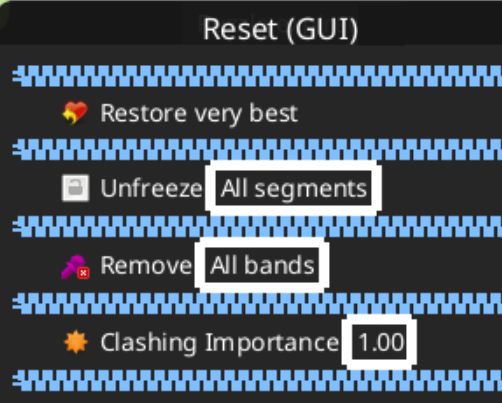
GUI recipes may also be found in the cookbook. These recipes show "GUI" in the title bar, and look very different than Lua recipes. GUI recipes can't be saved to a file. A Python program is available to convert them to Lua, however.
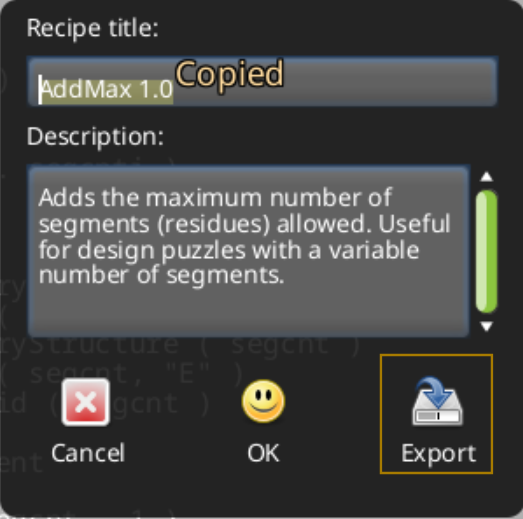
The "Save As" button gives you a recipe's current name and description. For Lua recipes, the "Export" button lets you save the recipe to a file. ("Export" is not available for GUI recipes.)

Highlighting and copying the recipe's title makes the next step easier.
After clicking "Export", you'll see a standard "Save File" dialog for your system. The Windows version shown here has been trimmed down quite a bit. Locate good spot for your recipe, maybe creating a new folder "Recipes" under My Documents on Windows. Then paste the copied recipe name into the "File name" box, and add the extension ".lua" to identify the type of file.
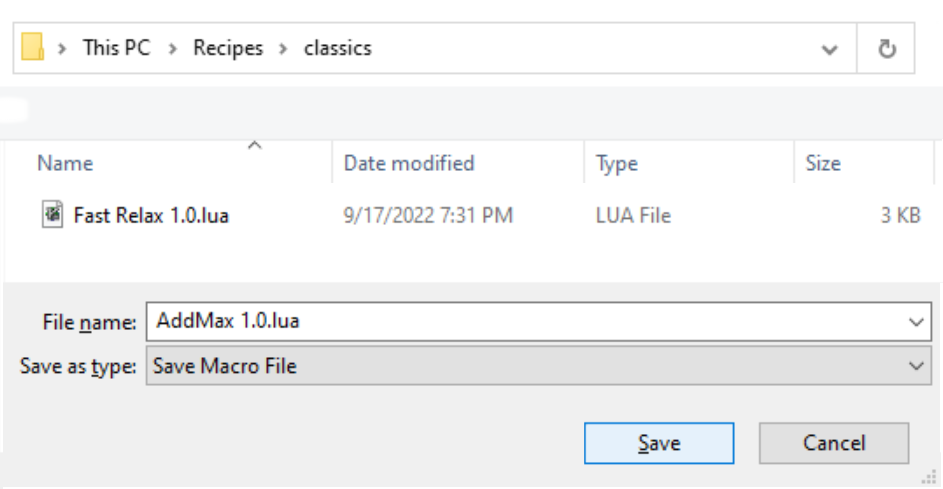
When you click "Save", you'll have your own copy of the recipe's source code. For V1, that code will need to be modified to work on the new system. For V2, all that's needed is to start a new recipe on the website, then paste in the recipe's source code.

On Windows, Notepad can be used to open a ".lua" file. If you just click on the file, you'll be asked which program to use. Select Notepad, which should appear in the list. You may also want to click "Always use this program to open…" to make the association permanent.

Catherwood Lv 1

Recovery 2 - Lua V2 recipe

In the previous steps, you may have been able to save your missing recipe to a file. You'll have a file something like "MyRecipe.lua" somewhere you can find it.

Assuming this recipe is using Lua "V2", adding this recipe to your cookbook is the same as creating a new recipe. As discussed in the posts above, V2 recipes have "ScriptV2" in the title bar of the old recipe editor in the old Foldit client.

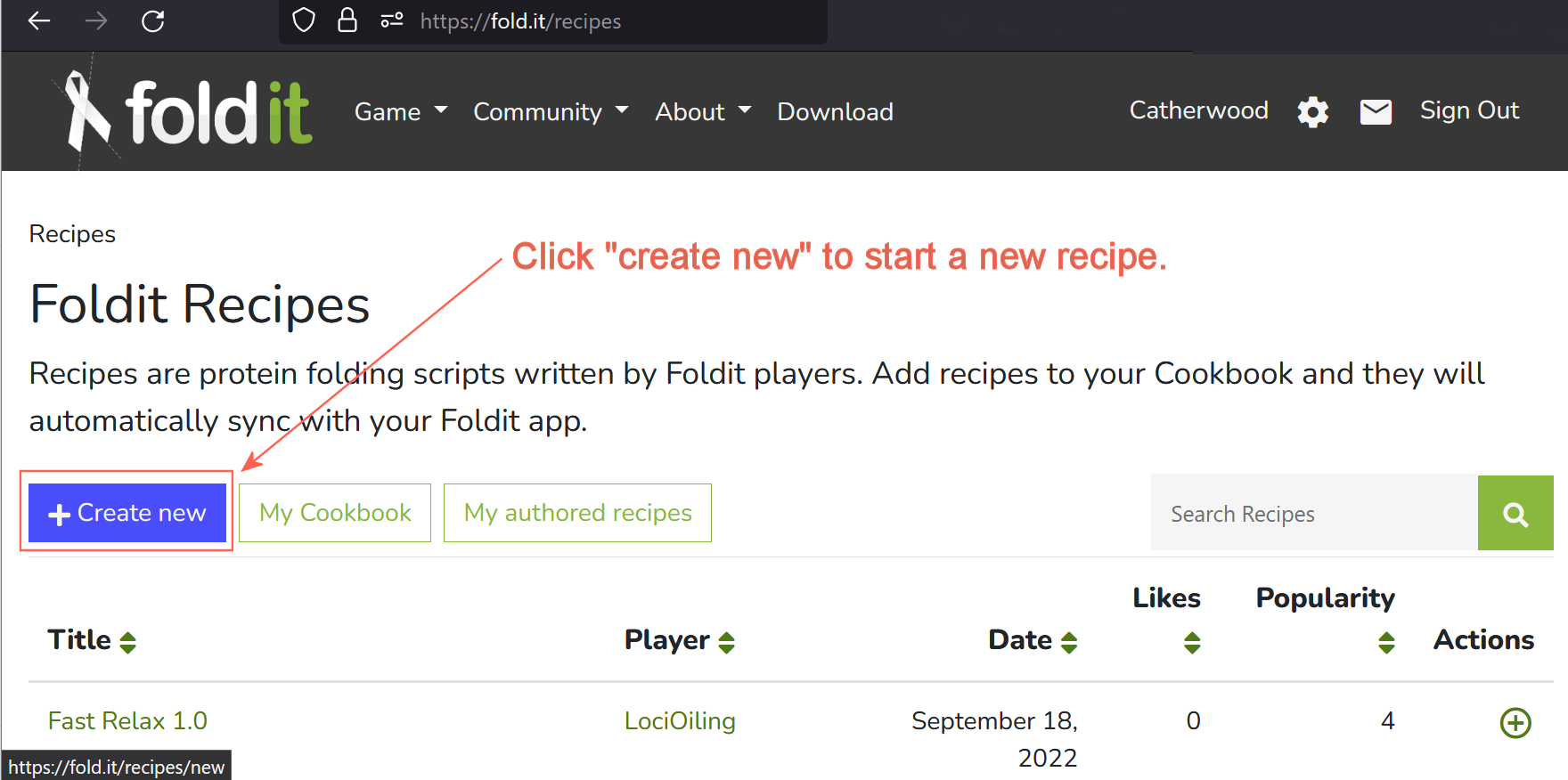
The first step is to navigate to Game, then Recipes on the new Foldit website, then click on "Create new". Alternately, you can go directly to https://fold.it/recipes/new.

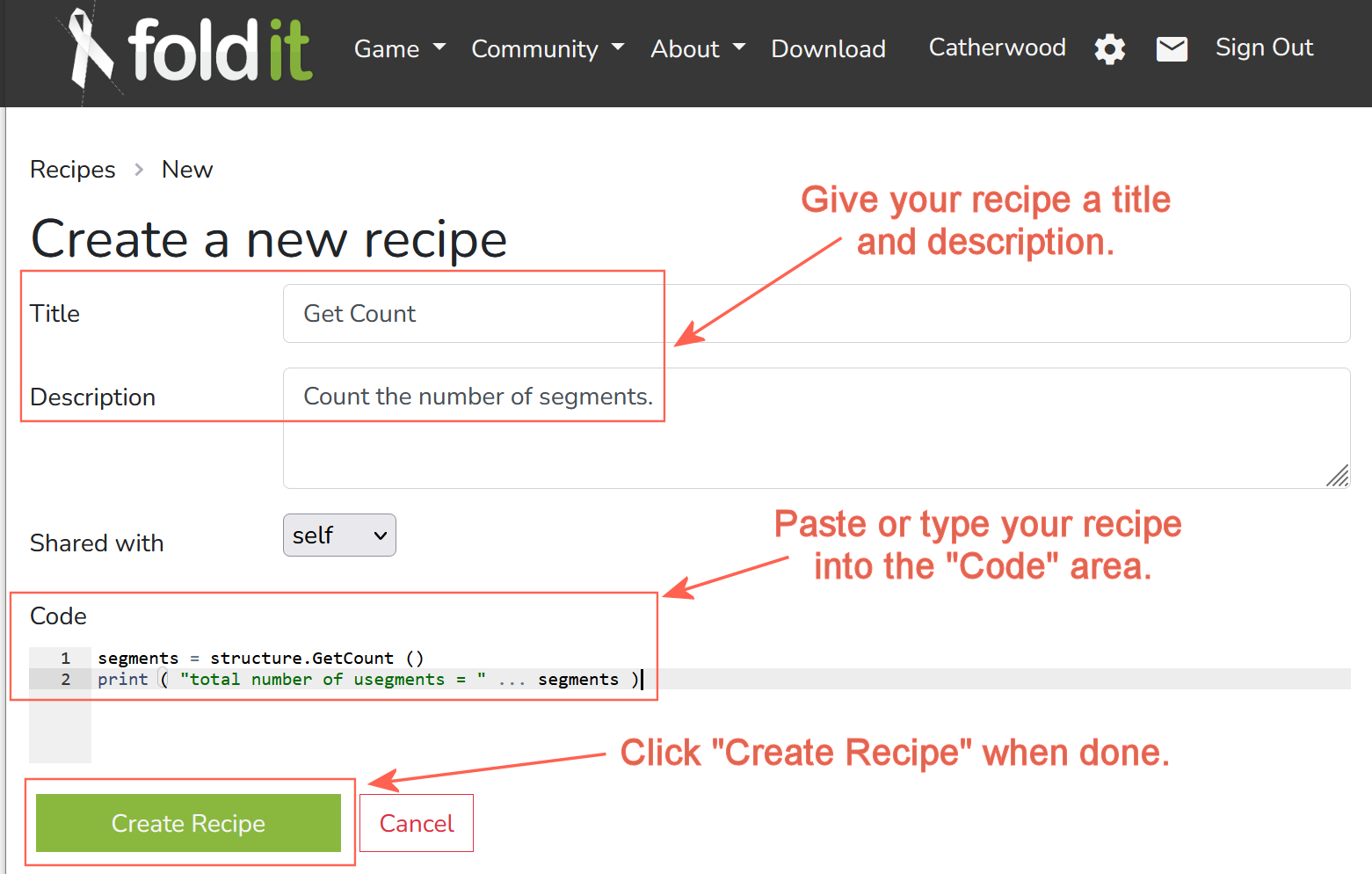
The new recipe editor then opens. Give your new recipe a title and a description, just like the original version of the recipe had. (You can find the old title and description either on the old website, https://old.fold.it, or in the old recipe editor in an old client, as described in previous posts.)

The missing recipe can then be pasted to the "Code" area of the recipe editor. (There is no option to import a file directly, or to drag and drop a file.) If you have the recipe in a file, you'll need to persuade Notepad or another editor to open, then select all text, and copy it, then paste it to "Code". (Alternately, you can copy the recipe directly from the old recipe editor in the old client, but this leaves you without having a backup of the recipe in your own file.)

At this point, you may also adjust the sharing option. By default, it's set to "self", meaning only you'll be able to use the recipe. You can also set "group" or "public" under the "Shared with" dropdown.

The final step is to click "Create Recipe", which saves the recipe, and automatically adds it to your cookbook. The recipe is now saved on the new Foldit website.